How to Use a VPN with Chromecast and Apple TV: A Complete Guide to Smart TV Geo-Unblocking
2026-10-15 · shanlian
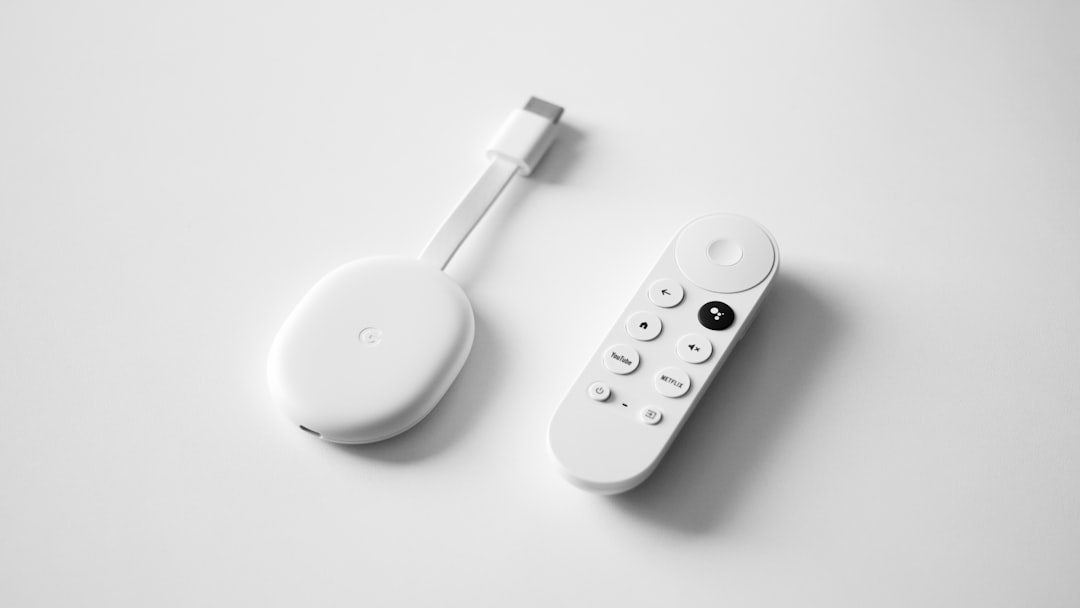
Lots of people buy a Chromecast or Apple TV, excited to watch content on Netflix or YouTube, only to find the network won't connect at all. A TV isn't like a phone—you can't just install an app and start geo-unblocking. This article lays out the different ways to use a VPN on a smart TV, and covers how to use lightxtreme VPN with them.
Why Is Using a VPN on a TV Harder Than on a Phone?
Let's start with a basic fact: neither Chromecast nor Apple TV supports installing third-party VPN clients. Apple TV's tvOS is a closed system, and there are simply no VPN apps in the App Store. Chromecast is even more extreme—it doesn't even have a standalone operating system and mainly relies on screen casting from your phone.
Android TV and Google TV are the exceptions. They're based on Android, so in theory you can install APKs. But navigating a VPN interface with a TV remote isn't exactly a pleasant experience either.
So when it comes to geo-unblocking on a TV, the approach isn't "install a VPN on the TV"—it's "route the TV's network traffic through a VPN."
Three Viable Solutions, Ranked by Difficulty
Solution 1: Run a VPN at the Router Level (Most Thorough)
This is the most permanent fix. Configure a VPN client on your router, and every device at home—TV, streaming box, game console—automatically goes through the proxy without any individual setup.
The prerequisite is that your router supports custom firmware like OpenWrt, Merlin, or Padavan. Once flashed, you enter the configuration details provided by lightxtreme VPN in the router's admin panel, pick a server node, save, and reboot—done.
The downsides are obvious: it requires some technical skill, flashing carries risks, and changing your ISP's optical modem to bridge mode can be a hassle with some providers. It's best for users who are willing to tinker and have many devices at home.
Solution 2: Share a VPN via Phone Hotspot (Easiest)
If you don't want to touch your router, this is the least hassle.
- Connect your phone to lightxtreme VPN and confirm you can access the internet normally
- Turn on your phone's personal hotspot
- Have your Chromecast or Apple TV connect to that hotspot
- The TV's network traffic now goes through the VPN via your phone
One thing to note: on some Android phones, the VPN disconnects when you turn on the hotspot. You'll need to enable "Allow LAN sharing" or a similar option in the VPN settings. On iPhone, this generally isn't an issue.
The downside of this approach is that your phone has to stay on the whole time, and hotspot data gets used up quickly—keep an eye on your plan if you're watching 4K video.
Solution 3: Smart DNS + Proxy Combo
Smart DNS works by only forwarding DNS resolution requests to overseas servers, without encrypting all traffic. It's fast and great for streaming, but strictly speaking it's not a true VPN and offers weaker privacy protection.
Some users use Smart DNS to solve unblocking issues, then use lightxtreme VPN for other scenarios that need encryption, combining the two.
Specific Tips for Apple TV Users
For Apple TV users, the most realistic options are the router solution or the hotspot solution. tvOS has no VPN client—that's a system-level limitation that won't change anytime soon.
If you're using an Apple TV 4K, which has higher network demands, we recommend prioritizing the router solution—it's far more stable than a hotspot. Hotspot sharing occasionally has latency fluctuations, which can cause stuttering during live streams.
Android TV / Google TV Users, Look Here
These devices can install APKs directly. If lightxtreme VPN offers an Android TV version or a universal APK, you can sideload it and use it. The general steps are:
- Enable "Allow installation of apps from unknown sources" on your TV
- Transfer the APK to the TV using a USB drive or a tool like Downloader
- After installation, log in to your account and select a node to connect
- Open your streaming app to test whether unblocking works
Entering your account and password with a remote is painful. We recommend scanning a QR code to log in via the mobile app, or connecting a Bluetooth mouse.
A Few Common Pitfalls
First, DNS leaks. Some solutions appear to connect, but DNS requests still go through your local ISP, and streaming services can still detect it. After connecting, it's best to check a DNS leak test website to confirm.
Second, speed issues. Watching video on a TV demands high bandwidth. If the VPN node is far away, 4K may not keep up. When choosing a node, prioritize low latency rather than obsessing over "unblocking."
Third, the relationship between Chromecast casting and VPN. If you're casting from your phone to Chromecast, it uses your phone's network. If your phone is connected to a VPN, the cast content will generally work fine. But if you're playing through Chromecast's built-in apps, you'll need to handle the TV's own network using the solutions above.
According to Sandvine's previous Global Internet Phenomena reports, streaming video has consistently accounted for over 50% of downstream traffic, and TVs are the primary devices for streaming consumption. This explains why the demand for smart TV geo-unblocking remains so strong.
At the end of the day, there's no one-click solution for geo-unblocking on a TV—it depends on your devices and how much effort you're willing to put in. The router solution is the most stable, the hotspot solution is the quickest to set up, and installing an APK on Android TV is the most direct. lightxtreme VPN works with all these scenarios. Just pick whichever suits your situation.
If you want to give it a try, head to the lightxtreme VPN official website to check the supported platforms and configuration tutorials, then pick a solution that matches your devices and get started. If the router setup is too much, start with the phone hotspot—you can verify whether it works in five minutes.
享受无限、高速和安全的浏览!立即保护您的隐私!
Get lightxtreme VPN