How to Set Up a VPN on Your Phone: Complete iOS and Android Tutorial with Screenshots
2026-09-21 · shanlian
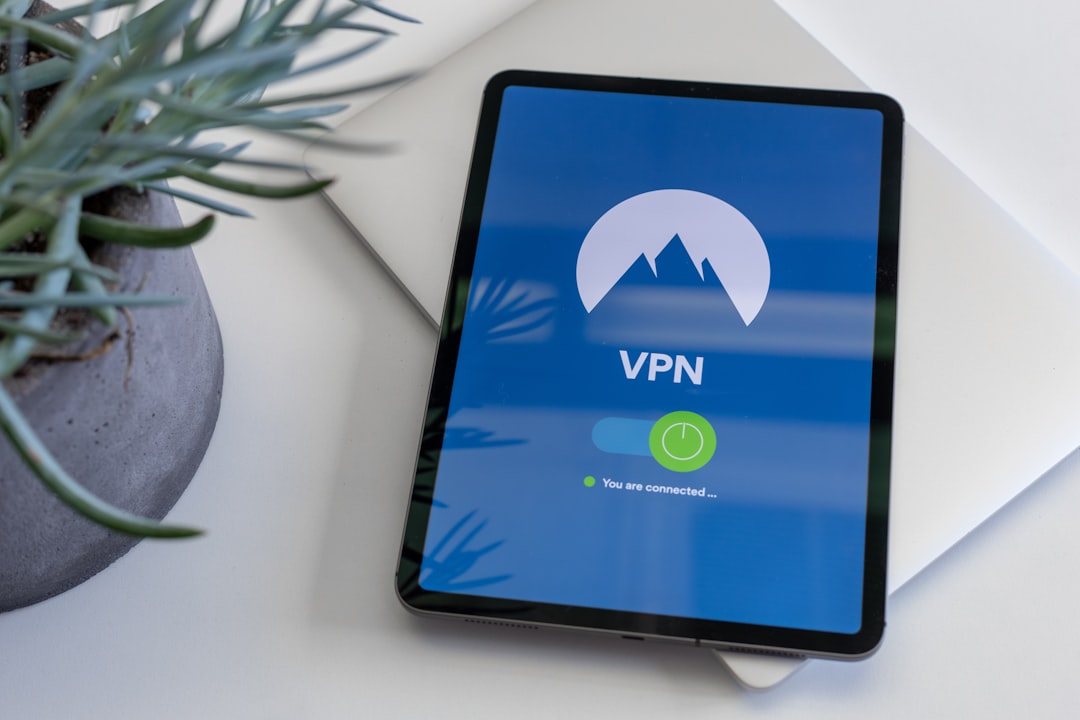
Many people buy a VPN and then get stuck at the setup step. Actually, setting up a VPN on your phone is much simpler than on a computer — in most cases, you just download the app and tap once. Today's article walks you through the complete process for both iOS and Android, so just follow along.
First, Figure Out: App or Manual Configuration?
Phone VPN setup mainly comes down to two approaches. One is downloading the VPN provider's app, logging in, and connecting with one tap — this is the easiest way and what most people choose. The other is manually adding a VPN configuration, where you need to enter the server address, account, key, and other details yourself.
When would you need manual configuration? Typically for corporate intranet VPNs, self-hosted servers, or certain special protocols that require manual import. If you're just browsing freely day-to-day or protecting your privacy on public WiFi, just use the app.
Reputable providers like lightxtreme VPN offer their own apps for both iOS and Android, saving you the hassle of manually entering parameters.
iOS Phone VPN Setup Tutorial
Method 1: One-Tap Connection via App (Recommended)
- Open the App Store, search for and download the official lightxtreme VPN app
- Register or log in to your account
- Pick a server from the node list — latency is usually displayed
- Tap the connect button in the center. The system will show a "VPN Configuration" authorization prompt — tap "Allow"
- Once the VPN icon appears in the status bar, you're connected
The first time you connect, iOS will ask you to enter your lock screen password or confirm with Face ID. This is a system security measure, not the app being sketchy. After that, you won't need to authorize again.
Method 2: Manually Add a VPN Configuration
If you have a configuration file from your provider, here's the process:
- Open "Settings" → "General" → "VPN & Device Management"
- Tap "VPN" → "Add VPN Configuration"
- Choose the type (IKEv2, L2TP, IPSec, etc. — follow your provider's instructions)
- Fill in the description, server address, remote ID, local ID, and account credentials
- Save, then go back to the VPN page and toggle the switch on
With manual configuration, a single wrong character can prevent you from connecting, so double-check every parameter against what your provider gave you. If that sounds like too much trouble, just use the app.
Android Phone VPN Setup Tutorial
Method 1: App Connection
- Open Google Play or download the APK from the official website to install lightxtreme VPN
- Log in to your account
- Select a node and tap connect
- The system will show a "Connection Request" dialog — tap "OK"
Android's authorization popup skips the password verification step that iOS requires, so connections are usually a bit faster. Some Chinese ROMs (like MIUI, ColorOS) may restrict VPN processes in the background — you'll need to set the app to "Unrestricted" in battery optimization settings, otherwise you may experience frequent disconnections.
Method 2: Manual Configuration
- Go to "Settings" → "Network & Internet" → "VPN"
- Tap the "+" in the top right corner to add
- Choose the VPN type, enter a name, server address, and account info
- Save and tap to connect
Menu names vary slightly across Android brands — some call it "More Connection Settings," others "Wireless & Networks." If you can't find it, just search "VPN" in Settings — that's the fastest way.
Can't Connect? Check These First
- Check your account status: Has your plan expired? Have you exceeded the device limit?
- Try a different node: A server going down is common — just switch to another one
- Turn off battery saver: Android's power-saving policies can kill VPN background processes
- Restart the app or your phone: Sounds like a cliché, but it genuinely fixes most mysterious issues
- Check permissions: iOS needs VPN configuration allowed; Android needs background running allowed
According to a 2023 survey by GlobalWebIndex, about 31% of internet users worldwide have used a VPN, with mobile devices accounting for over 60% of that. In other words, phones are already the primary platform for VPNs, and the setup experience directly determines whether users will stick with it.
A Few Common Beginner Questions
Does keeping the VPN on drain battery? A little, but reputable apps manage power consumption well. What really drains battery is those low-quality tools that keep reconnecting in the background.
How many devices can connect at the same time? Depends on your plan. Most providers allow 3-5 devices simultaneously. For lightxtreme VPN's specific device limit, check the plan details on their official website.
Do I really need a VPN on public WiFi? Yes, it's recommended. Open networks in cafes, airports, and hotels are hotspots for data breaches — encrypting your connection never hurts.
To Sum Up
Phone VPN setup really isn't as complicated as you'd think. On both iOS and Android, the app method is just three steps: download, log in, tap connect. Manual configuration is slightly more involved but still not hard. The key is choosing a reliable provider to save yourself a bunch of headaches down the road.
If you haven't tried it yet, head over to the lightxtreme VPN website, download the app, and give the whole process a go. Once you're connected, you'll realize those setup worries you had can actually be sorted out in just a few minutes.
享受无限、高速和安全的浏览!立即保护您的隐私!
Get lightxtreme VPN